
Switching between Windows, macOS, and Android can get tiresome when each device means importing your subscription again and learning another interface. FlClash makes that routine easier. Built with Flutter on top of the Mihomo core, formerly known as ClashMeta, it brings a Material You interface to a free, open-source, ad-free proxy client. If you want a familiar experience across your phone and computer, it is worth a look.
1. Why FlClash Is Worth Trying
FlClash is an open-source proxy client created by GitHub developer chen08209 and released under the GPL-3.0 license. Its source code is available to inspect and review. It supports Android, Windows, macOS, and Linux; check the release files for the architectures available on each platform. The appeal is being able to use familiar controls across different devices.
A few features make it stand out.
A familiar experience across platforms
Some cross-platform apps feel like separate products on a phone and a computer. FlClash uses Flutter to keep its layout and workflow broadly consistent. Once you know how to import a subscription or switch servers on your computer, you have much less to relearn on your phone.
Broad protocol support through Mihomo
The Mihomo core supports protocols such as Hysteria2, TUIC, VLESS with Reality, Trojan, and VMess, making FlClash compatible with many providers’ Clash/Mihomo subscriptions.
WebDAV backups make changing devices easier
WebDAV backup and restore is an easy feature to overlook. Rather than importing subscriptions and adjusting rules from scratch on a new device, you can connect to your WebDAV storage and restore a backup. This is especially useful if you use several devices or reinstall your operating system often. It is one reason to consider FlClash alongside desktop-focused clients such as Clash Verge.
Everyday usability matters more than benchmarks
Some users switching from Clash Verge report lower memory use and fewer freezes. These are individual experiences, rather than a performance guarantee: results depend on the device, client version, and configuration. FlClash’s main attraction is the convenience of a shared workflow across four platforms, rather than a claim to be the fastest desktop client.
Straightforward controls without losing the essentials
The basic workflow is easy to follow: enable the system proxy from the dashboard, add a subscription from the Profiles page, then choose and test servers on the Proxies page. Rule-based routing, proxy groups, latency tests, TUN mode, and configuration overrides are also available when you need more control.
2. When Another Client May Be a Better Fit
- You mainly use an iPhone. FlClash does not support iOS, so you will need a different client there.
- You want extensive desktop configuration tools. If you rely heavily on Merge/Script workflows or fine-grained configuration changes, compare FlClash with Clash Verge Rev before switching. For everyday use, those differences may matter less than having the same workflow on your phone and computer.
3. Download and Install
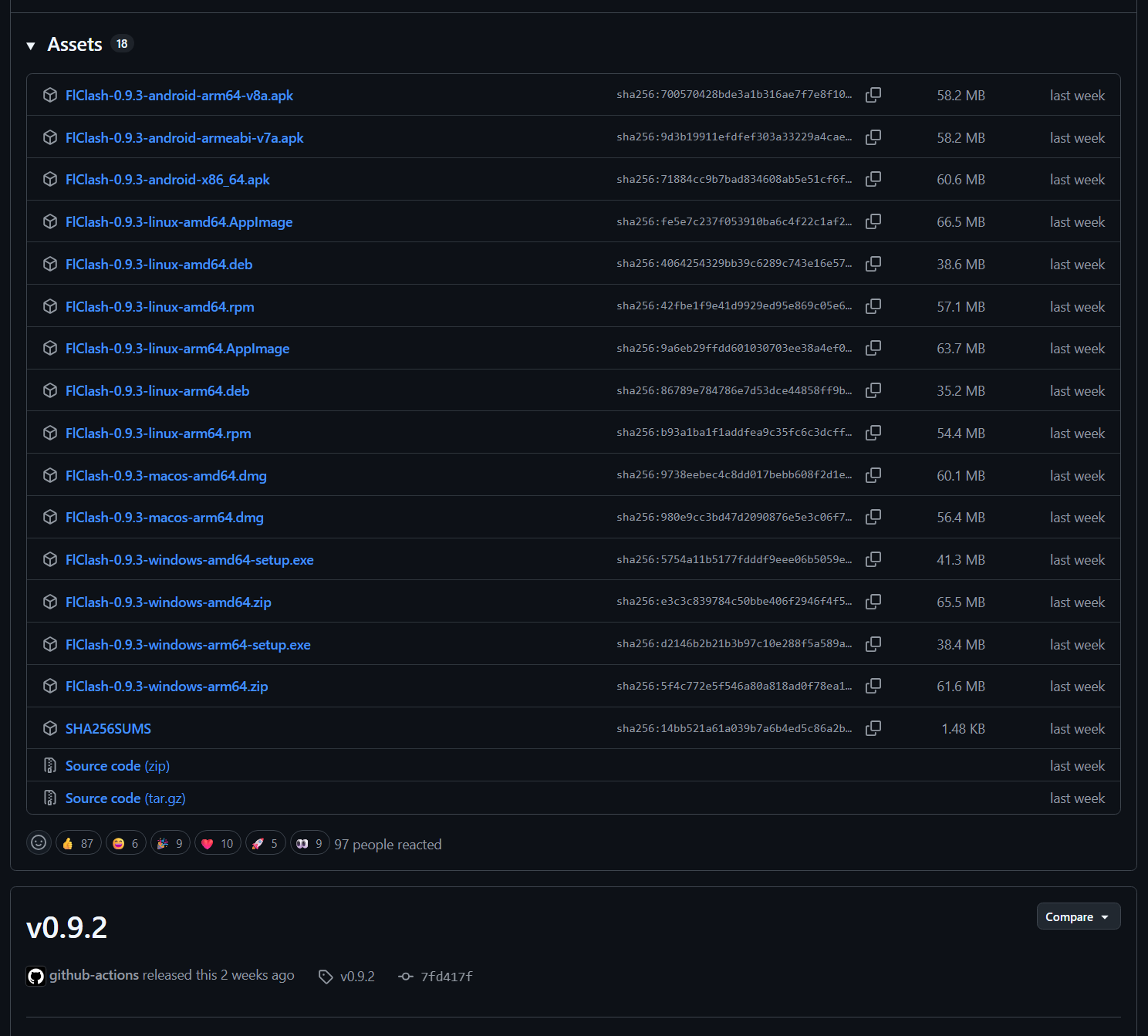
Start with the project’s GitHub Releases page, and avoid unofficial repackaged downloads. Choose a package for your operating system and processor:
- Windows: Use the setup installer if available; a portable build is another option.
- macOS: Choose the DMG for Intel or Apple Silicon. You can also install through Homebrew with
brew install --cask flclash. - Linux: Choose an AppImage, Deb, or RPM package, depending on your distribution and the files offered in that release.
- Android: Most recent phones use the
arm64-v8aAPK; some older devices needarmeabi-v7a.
Two first-run messages are worth knowing about:
- Windows: “Windows protected your PC.” SmartScreen warnings can relate to an application’s signature or reputation; the warning alone does not tell you whether a file is safe. Verify the download source and release information first. If you trust the file, you can then consider More info → Run anyway. If Windows reports a missing
VCRUNTIME140_1.dll, install the Microsoft Visual C++ runtime. - macOS: The developer cannot be verified. Check the download source first. If you trust it, follow the system’s instructions under System Settings → Privacy & Security to open the app.
4. Get Started: From Subscription to Connection
Step 1: Import a Subscription
FlClash is a client, not a proxy service. You need a subscription URL, usually supplied by your provider, or a YAML configuration file.
The following steps use Windows as an example. The workflow is similar on other platforms, although button labels and locations may vary:
- Open Profiles in the sidebar.
- Select Add profile.
- Choose URL/Link, paste the full subscription address, and optionally give it a name.
- Select Submit to download the configuration.
- When the download finishes, select the circle beside the profile to activate it. The selected indicator becomes filled.
If the subscription server itself requires a proxy to reach, you can download the YAML file using a working connection and import it as a file instead. On Android, starting the connection for the first time prompts you to approve a VPN connection. Allow it so the client can establish the connection.
Step 2: Set Up the Three Essentials
Return to the Dashboard and check these three things:
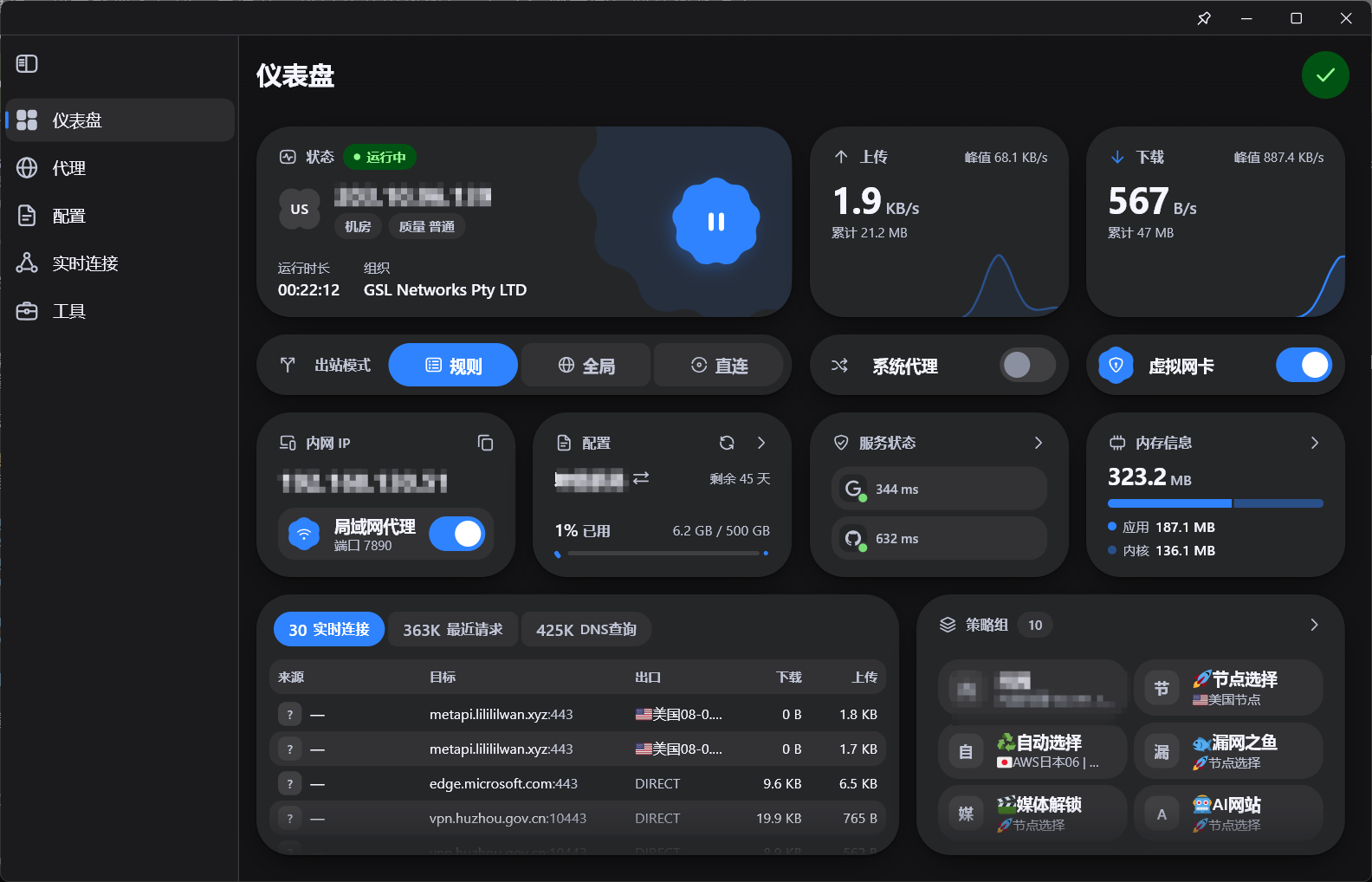
1. Choose Rule mode. This setting is easy to overlook. Global mode sends traffic handled by the client to the global proxy group. If that group uses a proxy server, even sites that could connect directly may take a detour. Rule mode follows the routing rules and group selections in your configuration. A common setup sends domestic sites directly and some overseas traffic through a proxy, but the actual behavior depends on the subscription’s rules and your selected groups.
| Mode | What it does |
|---|---|
| Rule | Routes requests according to the configuration’s rules; a sensible everyday starting point |
| Global | Sends traffic handled by the client to the global proxy group |
| Direct | Connects directly for traffic handled by the client; the client may still handle DNS or other processing |
2. Enable System Proxy. Applications that follow the operating system’s proxy settings will pass their requests to the client. Mihomo then decides whether to connect directly or use a proxy, according to your rules.
3. Choose a server on the Proxies page. A group may offer automatic selection, depending on your configuration. You can also run a latency test and choose a stable server yourself. Look for the lightning-bolt test button, wait for the results, and try a responsive server. Latency is only a guide: real-world speed and reliability matter more than the lowest number.
With that basic setup in place, browser requests that match your proxy rules should use the selected server.
Going Further: TUN Mode
System proxy settings mainly affect applications that choose to follow them. Whether command-line tools such as git, pip, and npm, game clients, or Docker use those settings depends on their own configuration. TUN mode uses a virtual network interface to capture traffic covered by its routes, which can help with these applications. Captured traffic still follows the selected outbound mode and routing rules; enabling TUN does not mean every request will use a proxy server.
- Windows: Run FlClash with administrator privileges, then enable TUN under Tools → Settings and approve any required driver installation.
- macOS: Enable TUN and follow any permission prompts under System Settings → Privacy & Security → Network Extensions.
- Android: The client already uses Android’s VPN mechanism, so there is no separate desktop-style TUN setup to complete.
You generally do not need System Proxy and TUN enabled together. Once TUN is working, you can turn System Proxy off. If TUN fails to start, first close other VPN clients, WARP, older Clash clients, or virtual networking tools that might conflict with it.
Going Further: Back Up and Restore with WebDAV
On the old device, open Tools → Backup & Restore → WebDAV settings, then enter your server address, account name, and application password. Test the connection and create a backup. On the new device, connect to the same WebDAV storage from the same settings page and restore it.
Jianguoyun is a convenient option for users in China. Check its current storage and transfer allowances against your backup needs:
Server: https://dav.jianguoyun.com/dav/
Account: Your Jianguoyun email address
Password: An application password generated under third-party app management,
          not your account's sign-in password
If you use a self-hosted service such as Nextcloud or Alist, enter its WebDAV endpoint instead.
5. Troubleshooting: Where to Look First
The imported subscription contains no servers
Check whether the subscription has expired, whether you chose the Clash/Mihomo format rather than another format such as V2Ray, and whether the subscription server needs a proxy connection to be reachable.
The subscription will not import or update
Check that the URL is complete and contains no stray spaces. Make sure the system clock is correct, since a large time difference can cause TLS certificate validation to fail. Depending on the subscription server, try updating over a direct connection or a working proxy; turning the proxy off is not always the right answer. You can also open the URL in a browser to see whether it returns YAML, a login page, or a 403 error.
Every server times out
Look for a shared cause: an expired subscription, a blocked local connection, an incorrect system clock, or an outdated client core. Update the subscription, try another network, and check your account or plan status.
The client is connected, but websites will not load
Check that the selected server responds to latency tests and that System Proxy or TUN is actually enabled. Briefly try Global mode. If Global works but Rule mode does not, investigate the routing rules or DNS settings. Restore the default DNS settings, then reapply changes one at a time.
Domestic websites become slower after connecting
Check whether you accidentally selected Global mode. Switch back to Rule mode and, if needed, inspect the rules and group selections for the affected sites.
The browser works, but another application does not use the proxy
System Proxy only affects applications that follow the system settings. Configure an HTTP/SOCKS proxy in the application itself, if supported, or try TUN mode.
The Android connection keeps dropping
Allow background activity and set FlClash’s battery usage to Unrestricted in the system settings. Android’s Private DNS settings can also interact with a Clash client’s FakeIP configuration. During troubleshooting, try setting Private DNS to Automatic and test again.
One website fails even though the server works elsewhere
Check the DNS settings under Tools → Settings → DNS. Trying a reachable DNS-over-HTTPS resolver, such as https://1.1.1.1/dns-query, can help determine whether DNS resolution is involved.
6. Which Client Fits Your Workflow?
| Client | Why you might consider it |
|---|---|
| FlClash | A Flutter-based Material You interface across desktop platforms and Android, with TUN support and WebDAV backup and restore |
| Clash Verge Rev | A Tauri-based desktop client worth comparing if desktop integration and extensive configuration tools are your priorities |
| Older Clash clients | Some are no longer maintained; an older core may reject newer protocol configurations with an Unsupported Config error |
If your goal is to use a familiar setup on both a computer and an Android phone, FlClash’s consistent workflow and WebDAV backups are useful advantages. If you only use a desktop and want more extensive configuration tools, Clash Verge Rev is also worth considering.
Final Thoughts
FlClash is a good candidate if you want a familiar client on your phone and computer, straightforward everyday controls, and an easier way to move your setup to a new device. Its appeal is simple: it is free, open source, easy on the eyes, and available across several platforms, with backup and restore built in.
The basic routine is short: download the app, import a subscription, select a server, and enable System Proxy or TUN as needed. If something goes wrong, the project’s documentation and GitHub issues are useful places to look for guidance.